User Guide
Reports & analytics
Five reports with date-range + scope filters and CSV/XLSX/PDF export per tab.
Numbers tie out across reports
Every report runs the same approved-only filter so "Billable" / "Billed" means bill-ready work. Revenue Report's "Billed work" matches Time Report's "Approved hours × stamped rate" matches Profitability Report's "Revenue."
5 reports
⏱️
Time
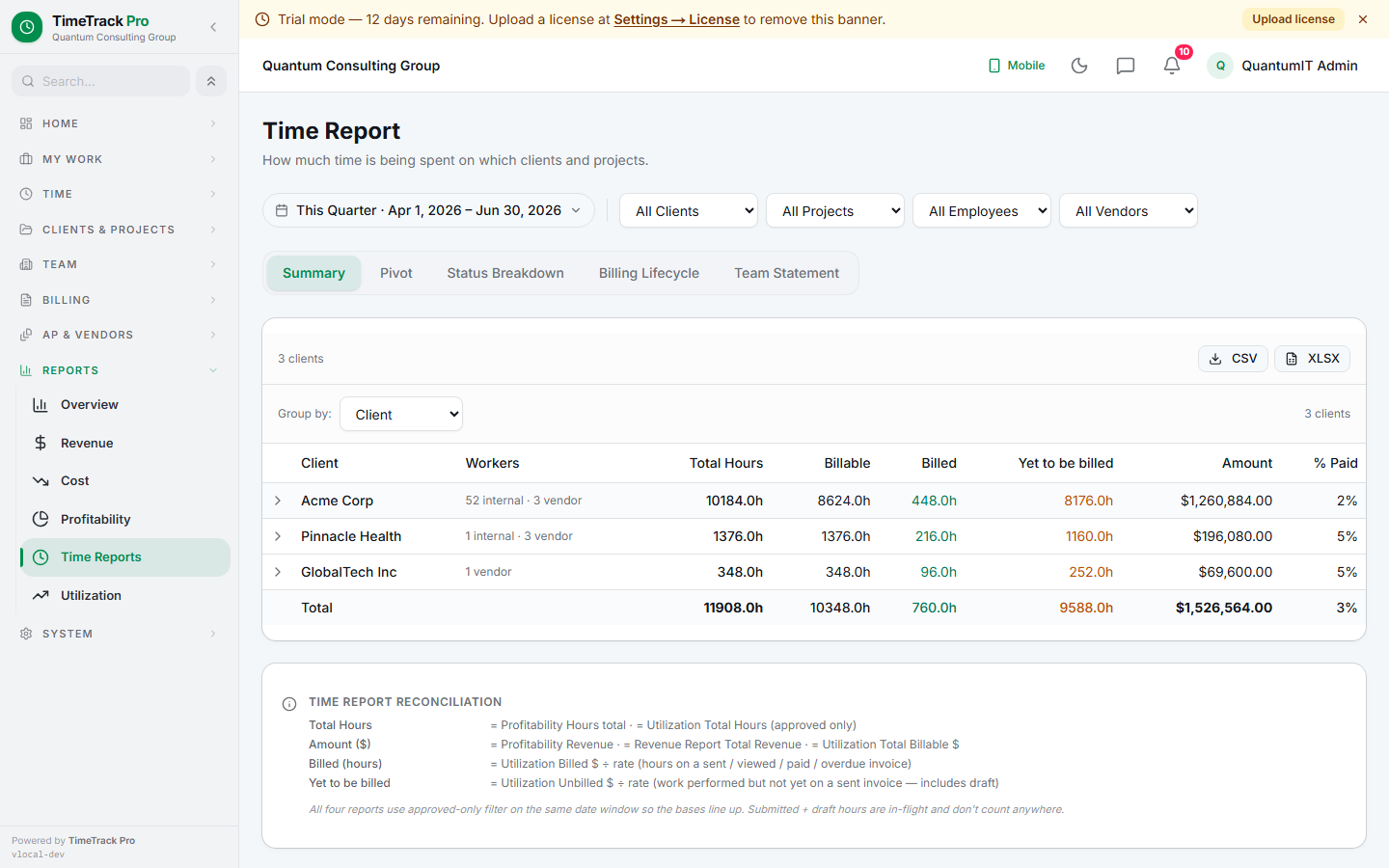
Operational hours lens. 5 tabs: Summary (4-axis selector), Pivot, Status Breakdown, Billing Lifecycle, Team Statement.
💰
Revenue
6 summary cards (Total / Invoiced / Unbilled / Collected / Outstanding / Avg Days to Pay) + 4-line monthly trend + aging table.
💸
Cost
AP-side mirror of Revenue. 6 cards (Vendor / Internal / Vendor Invoiced / Paid / Outstanding). Per-vendor + per-employee breakdowns.
📈
Profitability
Per-project margin with vendor cost + internal cost split. Monthly ComposedChart (revenue + cost bars + margin% line).
🎯
Utilization
Team-average billable% with target line. Focused lists: Below threshold (intervention) + Above target (recognition).
Time Report — 5 tabs
📋
Summary
4-axis selector: Client / Project / Employee / Vendor. 3-level drill on Client (Client → Project → Employee with $).
📐
Pivot
Client × Project matrix with row + column + grand totals. Orientation toggle.
🚦
Status Breakdown
Draft / Submitted / Approved hours side by side. Approved- only $ with client OT multiplier applied.
🛣️
Billing Lifecycle
Approved → billed → paid funnel per client/project.
👥
Team Statement
Paginated per-employee timesheet statements with prev/next.
Approved-only by default
All $ rollups filter to
status = 'approved' so the Billable columns mean bill-ready work. The Status Breakdown tab is the dedicated lens for seeing the in-flight pipeline (draft / submitted / approved) side by side with the bill-ready lens.Export options
Per-tab CSV + XLSX export via xlsx library, plus PDF via React PDF. Filename stem includes the report name + date range. XLSX exports preserve column widths for spreadsheet-friendly display.
Tip
The Time Report's outer Export button is hidden on the Team Statement + Status Breakdown tabs — those tabs have context-specific exports. Avoids shipping the wrong shape.